
When you’re ready to dive into a fresh round, the first hurdle is often the login screen. A failed login can feel like a wall, especially when the game’s graphics and soundtrack are waiting. Below are the most common reasons your credentials aren’t accepted and the exact steps to get past each one.
1. Typing Errors: The Classic Mistake
It sounds obvious, but the most frequent cause is a simple typo. Zombillion’s system is case‑sensitive and does not ignore spaces. If you accidentally hit Caps Lock or leave an extra space at the end of your password, the server will reject it. Before you hit “Submit,” double‑check each character. A quick way to catch mistakes is to copy your password into a plain‑text editor, then paste it back into the login field.
2. Account Lockout After Multiple Attempts
For security, Zombillion locks an account after five consecutive failed attempts. The lockout period lasts 15 minutes, during which the login button remains disabled. If you see the message “Account temporarily locked,” simply wait until the timer expires. Avoid trying again immediately; each additional attempt extends the lockout by another 5 minutes.
3. Browser Cache and Cookies
Stale data can confuse the authentication process. Clear the cache and cookies for the site: in Chrome, go to Settings → Privacy → Clear browsing data. In Firefox, use Options → Privacy & Security → Cookies and Site Data → Clear Data. After clearing, close the browser, reopen it, and try logging in again.
4. Outdated Browser or Disabled JavaScript
Zombillion requires a minimum of Chrome 80 or Firefox 75, and JavaScript must be enabled. If you’re on an older browser or have a strict ad‑blocker that also blocks scripts, the login form may fail to load properly. Update your browser or add an exception for Zombillion in your blocker’s settings.
5. Two‑Factor Authentication (2FA) Issues
If you’ve enabled 2FA, the system will prompt for a code from your authenticator app after entering your password. Common problems include using an outdated code or having the wrong time zone set on your device. Sync your phone’s clock, generate a fresh code, and enter it promptly. If you’re still stuck, disable 2FA temporarily from the account settings and try logging in again.
6. Account Not Verified
New accounts require email verification. Check your inbox for a message from Zombillion and click the verification link. If you don’t see the email, look in the spam folder or resend the verification link from the login page. Without verification, the system will refuse the login attempt.
7. Network Restrictions or VPNs
Some ISPs or corporate networks block gaming ports, and VPNs can mask your IP address, triggering security alerts. Disable any VPN or proxy, switch to a different network, and try again. If you’re on a public Wi‑Fi, the connection may be too unstable for a secure login.
8. Server‑Side Glitches
On rare occasions, Zombillion’s servers experience downtime or maintenance windows. Check the official support forums or the status page for announcements. If the issue is server‑side, the only remedy is to wait until the maintenance completes, usually within 30 minutes.
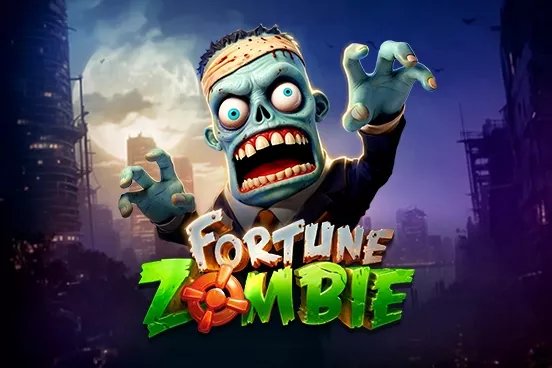
Bridge to Online Gaming and Entertainment
Once you’ve sorted your login, you can focus on the gameplay itself. If you’re looking to expand your entertainment options, consider checking out other online platforms that offer a mix of games and interactive experiences. For a seamless transition, you might log in to Zombillion and explore their latest releases.
9. Password Reset Problems
When you request a password reset, an email with a time‑limited link is sent. If the link expires before you click, you’ll see an error. Click the reset button again, and use the new link immediately. Avoid copying the link into a new tab; paste it directly into the browser address bar.
10. Account Compromise Alerts
Zombillion monitors for suspicious activity. If a login attempt originates from an unfamiliar location, the system may block it and send an alert. Verify the email, then confirm the device in the account settings. This step ensures you’re the one accessing the account.
Which Fix to Try First?
Start with the simplest: double‑check your credentials and clear cache. If those don’t help, move on to the more technical fixes—browser updates, 2FA, and network settings. By following this order, you’ll save time and frustration while restoring access to your favorite games.
Conclusion
A failed login can be a quick annoyance, but most issues are straightforward to resolve. Keep a record of the exact error message, follow the step‑by‑step solutions above, and you’ll be back in the game in no time. Remember, the key is to isolate the problem—whether it’s a typo, a security lockout, or a browser glitch—and address it methodically.
Frequently Asked Questions
What should I check first if my Zombillion login fails?
Verify your username and password are correct, ensuring no extra spaces or incorrect case—Zombillion’s system is case‑sensitive.
How do I reset my Zombillion password?
Click the ‘Forgot Password’ link on the login page, enter your registered email, and follow the reset instructions sent to you.
Can network issues cause login failures?
Yes, unstable internet or firewall settings may block access; try a different network or disable VPNs to resolve the issue.
Why might I see a ‘duplicate login’ error?
You’re already logged in on another device; log out from all devices in account settings before attempting again.